Anúncios
Can a few tiny changes on your phone cut minutes from every day? That question matters if you want faster access and less mental clutter.
You’ll set a clear intention so you reach what you need in fewer taps. On Android, disabling “Add app icons” and using the alphabetized App Drawer keeps things tidy. On iOS, the App Library, widgets, and Shortcuts let you hide rarely used apps and build Focus-based layouts for work or rest.
We’ll show simple ways to group key actions, trim excess icons, and pick a calm wallpaper that reduces distraction. Keeping a search bar and enabling swipe-to-search speeds daily queries.
By the end, you’ll have a repeatable process to shape a layout that boosts productivity, helps focus, and keeps essential tools front and center while moving other items out of the way.
Anúncios
Set your goal: a faster, simpler home screen you can navigate without thinking
Start with one clear intent: decide what the primary page should help you do and remove anything that distracts. On iOS you can add multiple wallpapers and switch them from the lock screen. Use Settings > Focus to allow specific apps and control which pages appear for different parts of your day.
Android launchers vary by maker but most let you create custom pages and layouts. Note what the default launcher or iOS layout already does well and what slows you down.
- Pick one way to reach core actions—search, the dock, or a minimal first page—and design around that choice.
- Set a simple metric: open your most-used app from the first page in under two seconds.
- Prioritize daily apps: place a handful on the first page and move the rest to a testing page.
Sketch a layout on paper, treat Focus and Focus mode as a tool to swap pages and notifications, and choose a calm wallpaper that keeps icons readable.
Declutter first: remove, regroup, and reset what you don’t need
Start by clearing clutter — remove, group, then reset. Make three quick passes: sweep away rarely used apps, form useful folders, and finish with thumb-friendly placement near the bottom.
On Android: long-press an empty area > choose Home Settings and toggle off “Add app icons to home screen” so new installs don’t pile up. Use the alphabetized, searchable App Drawer for apps you keep but don’t want on your main page. Create folders by dragging one app onto another and place them low on the page for easy access.
On iPhone or iPad: press until icons jiggle, then drag apps to the App Library to remove them from pages. To restore an icon, drag it back from the App Library list. If a layout experiment fails, use Settings > General > Transfer or Reset iPhone > Reset > Reset Home Screen to return to the default and start again.
- Prevent new clutter: disable “Add app icons” on Android.
- Rely on search while you move items to the App Drawer or App Library.
- Create clear folders with short names and only a few essentials.
- Remove duplicate entry points.
- Keep wallpapers simple during cleanup.
- Do three passes: remove, group, place.
For a quick checklist and broader device cleaning tips, see tech spring-cleaning tips.
Design your layout: dock, pages, and icon placement that fit your hand and habits
Start by shaping a layout that matches how your hand and day actually move. Keep the design simple so you reach common actions without thinking.
Dock strategy
Limit the dock to the handful of apps you tap all day—email, notes, and your browser are typical picks. Avoid tempting or distracting apps so the dock becomes a reliable launchpad.
Page and layout choices
Make the first home screen page sparse. Put only core apps or a single folder there so you land, act, and leave fast.
Group secondary apps on following screens by category—Finance, Health, Travel—so you know which page to swipe to. Place your most-used icons and folder near the bottom for one-handed reach, especially on larger phones.
- Build around the dock first: keep it focused and non-distracting.
- Make the first page minimal and the next pages categorical.
- Pair a calm wallpaper with clear icon spacing to cut visual noise.
Use widgets and search wisely for real quick access
Use a few smart widgets and a visible search bar to shave seconds from common tasks. Keep widgets focused so they speed action, not slow it.
Keep widgets to a minimum: prioritize purpose-built stacks and sizes
Treat widgets like tools: add widgets only when they remove taps or surfaces urgent info. Prefer smart stacks that rotate cards over filling a whole page with static tiles.
Too many widgets can block long-press menus on Android. Keep one or two glanceable sizes for calendar or tasks and avoid crowding near the bottom where gestures live.
Search at your fingertips
Keep search visible: on Android, keep the Google search bar so you can launch queries without opening a browser. Move it lower if your launcher allows to make one-handed access natural.
On iPhone, rely on Spotlight to find an app or action fast. This reduces the need to scatter icons and keeps the first page tidy.
Enable helpful feeds and quick access gestures
If your launcher supports it, enable swipe-to-Google-app so weather, news, and account tools are one gesture away. That feed can act as a single, default place for glanceable info.
- Prefer one high-value widget over three low-value ones.
- Audit widgets weekly and remove any that don’t save time.
- Use a shortcut tile sparingly to collapse repeated sequences into one tap.
Make it distraction-free: wallpapers, icons, and visual cues that boost focus
A calm visual design helps you find apps faster and keeps distractions low.
Choose simple wallpapers that fade into the background. Pick solid or muted textures so the wallpaper does not compete with icons and widgets. On iOS, change sets via Settings > Wallpaper and keep a small selection for different contexts.
Choose simple wallpapers that fade into the background
Use wallpapers that maintain contrast in bright and dim light. Avoid busy photos or high-contrast art near top rows where status indicators live.
Customize icons for clarity: use Shortcuts on iOS and cohesive styles that match your wallpaper
Use consistent icon styles so you can recognize targets without reading. On iOS, make an “Open App” shortcut and add a custom image for key apps, then audit whether the effort pays off for less-used items.
- Pick wallpapers that practically disappear and keep attention on action items.
- Keep icon sets cohesive and test the layout at a glance for tap accuracy.
- Ensure any widget’s color and type remain legible over the background.
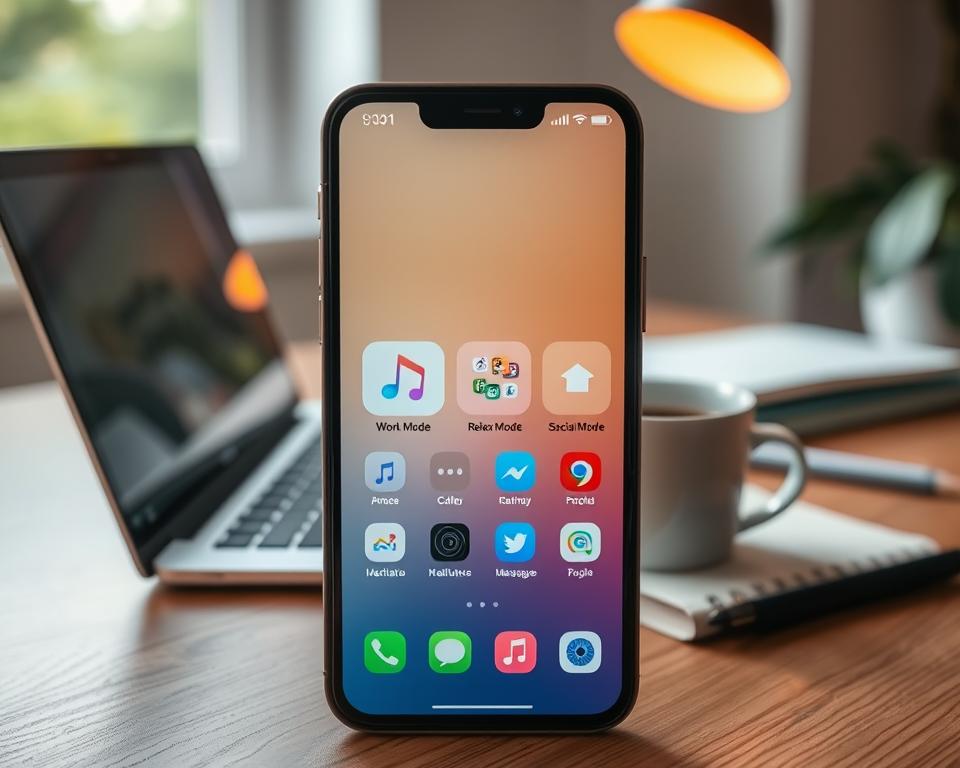
home screen optimization for different contexts: Focus modes and dedicated screens
Use context-aware layouts so your device shows only what matters during class, work, or downtime.
On iOS and iPadOS, open Settings > Focus to build Work, Personal, or School setups. Pick allowed people and apps, hide distracting pages, and schedule automatic changes so your School page brings up Google Drive and study tools during class.
On Android, explore launcher modes and OEM profile features to mute badges, swap icons, and present a pared-down primary page for work or rest. Many launchers let you change what appears on your default page by context.
- Keep each context minimal: a few apps, one widget, and clear icons.
- Tie a focus mode to a schedule or location so the phone changes pages automatically.
- Reassess monthly and remove anything that adds friction or stress.
Don’t over-optimize: small, meaningful changes beat perfection. Build a simple School setup and a compact Work layout that help you start tasks fast, not worry about settings.
Speed boosters: shortcuts, gestures, and smart defaults
Turn long sequences into one-tap actions with shortcuts and well-chosen defaults. Build a small toolkit of actions that let you jump straight to what matters.
Create shortcuts for common tasks. On iOS you can make a shortcut that opens an app, launches multiple URLs, or runs a mini workflow. Pin that shortcut to your first page so a repeated flow becomes a single tap.
Leverage gestures and long-press menus. Android and iOS both offer long-press pop-ups that go directly to in-app views. If your launcher supports gestures, map a swipe or double-tap to search or a favorite app for true quick access.
Keep smart defaults that save time. Keep the Google search bar or a swipe-to-feed enabled if they speed tasks. Disable defaults that add noise, like auto-adding new app icons after installs.
- Pin a shortcut that opens multiple links or a specific in-app view.
- Use long-press actions to skip app load time.
- Map one gesture to search for universal reach.
Prevent clutter creep. Schedule a brief monthly review: sort new apps into folders, remove unused items, and keep bottom-row icons reachable for one-handed use.
- Create folder names that match how you think about tasks.
- Run a quick change pass when clutter appears: remove duplicates and re-center core items.
- Test any new layout for a week before you commit.
Conclusion
A few steady habits will keep your icons and pages working for you, not the other way around.
Declutter, design, and defend are the three simple steps to tune your home screens for speed. Remove extras, place core apps and a lean dock where your thumb naturally lands, and keep a visible search or Google swipe for instant access.
Use simple wallpapers and cohesive icons so targets pop. On iOS, lean on App Library, Shortcuts, and Focus schedules. On Android, keep the search bar and enable the Google-app swipe page for fast lookups.
Iterate lightly: if a layout feels off after a few days, swap folders, adjust modes, or change wallpapers. The aim is steady productivity, not perfect design—let your phone fade into the background so you can get things done.