Anúncios
We set the stage by showing how a focused set of tools can streamline the way we work. Our aim is to help teams spend more time executing and less time configuring systems. This keeps outcomes clear and reduces friction.
In this short guide we compare options, evaluate fit, and outline a simple plan for testing and rollout. We explain how the right widget can reduce context switching by putting the right information on screen at the right moment. That turns scattered ideas into a reliable daily flow.
We preview the stack we’ll cover—Notion, calendar sync, desktop and home screen tools, and a few apps for focus. We call out common pitfalls like chasing features, mixing too many apps, and ignoring adoption. Our goal is practical steps you can adopt today, so you see fewer missed tasks and cleaner content routines.
Understanding Productivity Widgets and Why They Matter to Our Workflow
Widgets bring key information into view so we can act faster with less friction. In our terms, a widget is a compact UI element that surfaces essential data and actions from an app right where we work.
These components compress time-to-action by showing live information — upcoming tasks, quick controls, or status updates — so we tap once and move on. That reduces context switching and keeps important items visible in our workspace.
Anúncios
We also see how a widget differs from a full app view: it avoids deep menus and gives focused utility without distraction. That clarity helps us decide when to start a task, what to do next, or which item is blocked.
- Where they live: desktop, mobile, web dashboards.
- What they speed up: task starts, quick checks, and approvals.
- How we pick them: match tools to our habits, not the other way around.
For examples of building small, tailor-made panels we can add to our screens, see this piece on custom widgets.
What Counts as a Productivity Widget in 2025
Today’s compact on‑screen modules bring live data into our workflow so decisions happen faster. They range from small desktop tiles to mobile panels and full in‑app dashboards that live inside a page.
From desktop and mobile to in‑app dashboards
We group modern widgets across three places: the desktop, the lock or home screen, and embeds inside apps like Notion. Notion embeds place live information on a page for fast reference without leaving the workspace.
Common types we actually use
Core examples include calendar views to plan the day, to‑do list blocks that keep execution visible, habit tracker tiles for routines, notes snippets for quick context, and progress bars or countdowns to signal urgency.
Why these small tools matter
Faster access and reduced context switching mean we act on the next task, not hunt for it. Real‑time updates—from Weather, Google Trends, or Charts—help prioritize when project conditions shift.
- Focus and timing: Clock, Pomodoro timers (Flocus), and Stopwatch trackers keep our time blocks clear.
- Data in place: Embeds like Indify, ChartBase, Apption, and Blocs.me update live and match page design.
- Design matters: Clear typography, contrast, and size make vital information readable at a glance on any screen.
In short, a small set of well‑chosen widgets turns scattered information into a compact command center for each project and day.
Our productivity widget guide: how we evaluate features, integration, and user experience
To pick the best options, we zero in on features, integration depth, and how the interface feels in daily use. These three lenses keep our reviews practical and actionable.
Must‑have features include flexible layouts, configurable fields, templates, and clear progress visualization. We expect status updates and multi‑project views so managers can scan work without opening several project apps.
- Templates for weekly planning, sprints, and content calendars to speed setup.
- Configurable progress bars and status chips that reflect real project states.
- Admin controls and sharing to keep team configurations consistent.
Integration essentials
We test sync with Notion, Google Calendar, and major project management platforms. Reliable data sync must cut duplicate entry and keep the workflow aligned across tools.
Usability and design
We value clean layouts, readable states, keyboard access, and obvious controls for desktop and home‑screen placement. A strong onboarding flow and short documentation help new users get productive fast.
Finally, we map pricing against long‑term value. Free tiers matter for trials, but we weigh paid plans by the features we will actually use and the cost of switching later.
Top project overview widgets for teams in the present day
Here are the overview tools that help teams surface progress, spot blockers, and steer development in real time.
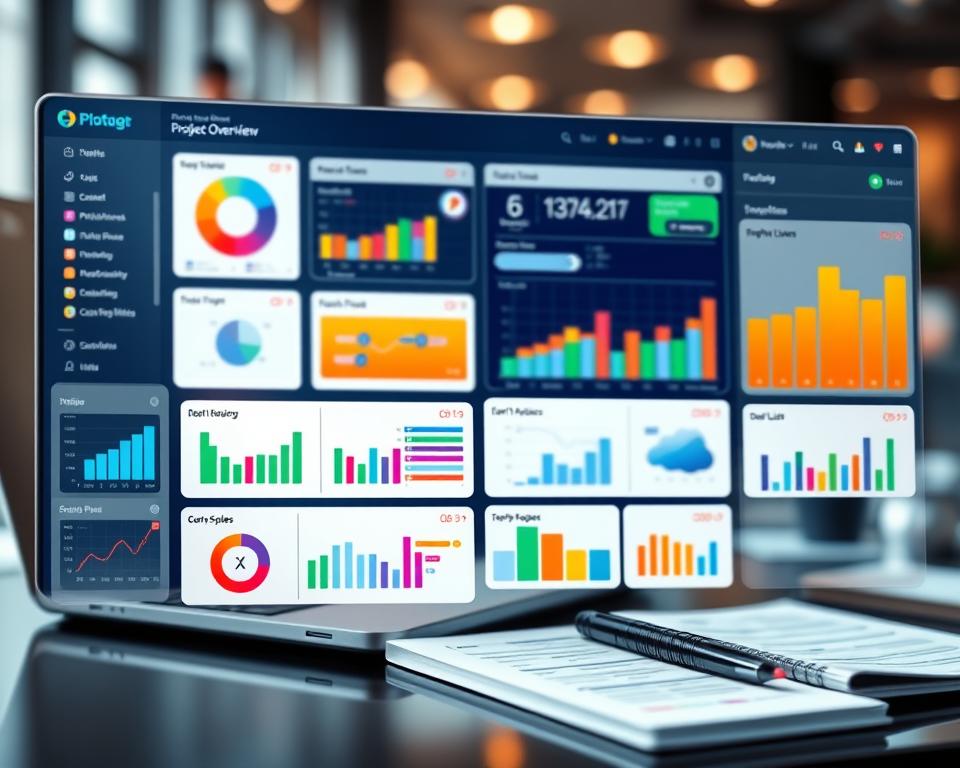
ONES Project
ONES Project focuses on R&D management with templates for Agile, Waterfall, and cross‑team collaboration.
Its Project Overview Widget shows real‑time KPIs, milestones, and bottlenecks so we monitor health and iteration cadence.
Trello
Trello gives visual board overviews, timeline views, and Power‑Ups to add metrics without complexity.
For teams that prefer clarity, Trello makes it easy to see what’s due, who owns a task, and how projects are tracking.
Asana
Asana links project progress to company goals with goal‑tracking dashboards and workload views.
Real‑time status updates help leaders confirm alignment between strategy and team capacity.
Jira
Jira is built for agile development: sprints, burndown and velocity charts, and release planning widgets give detailed tracking.
Issue tracking widgets surface blockers so engineering teams can act fast.
Airtable
Airtable uses relational data, Gantt views, and custom scripting to map complex dependencies across projects.
Teams with data‑heavy workflows can expose risks early and keep timelines realistic.
ClickUp
ClickUp brings AI‑enhanced widgets that flag risks, highlight critical tasks, and predict outcomes.
Adaptive dashboards evolve with our usage and help us move from static reports to forward‑looking management.
- Which to pick: ONES for R&D, Trello for visual simplicity, Asana for goal alignment, Jira for engineering, Airtable for complex data, ClickUp when AI adds value.
- Try first: Run short trials to validate integration and adoption before standardizing across teams.
- Implementation tips: Use one overview per project, define a minimal KPI set, and enforce quick update routines so the data stays trustworthy.
Building our daily workspace: Notion widgets, Google Calendar, and WidgetWall
We arrange tools so that planning, scheduling, and quick checks live on one canvas. A tidy hub reduces clicks and keeps what matters visible.
Notion as a hub
We set Notion as our daily hub to centralize tasks, notes, templates, and progress bars in one place. A single dashboard for weekly tasks gives us context without switching tabs.
Syncing time with Google Calendar
By connecting a Notion task database to Google Calendar, due dates become scheduled events. This turns intentions into protected blocks of time and reduces manual re-entry.
WidgetWall and desktop access
On the desktop we use WidgetWall to pin Notion pages, calendar events, and reminders to the home screen. That gives fast access to lists and project snapshots without opening every app.
Adding music to focus
We add Apple Music or Spotify widgets for tone setting. Instrumental playlists for deep work and upbeat tracks for admin tasks help us stay on task without full app switching.
- Design: keep typography simple and consistent so the screen stays readable.
- Morning sweep: scan calendar blocks, top tasks, and key updates before work.
- Keep integrations light: prefer reliable sync and minimal setup.
Setting up and optimizing widgets to keep track of goals and track progress
We build a compact dashboard that keeps goals visible and progress simple to check. A few well‑placed embeds in Notion turn a blank page into an active workspace that updates in real time.
Fast setup: embed blocks and links for calendars, timers, charts, and news feeds
Copy the widget link or embed code, paste it into a Notion Embed block, then resize and position. We keep critical elements above the fold so the daily view shows what matters.
Time and task management
We add a Pomodoro timer (Flocus), Google Calendar via Indify, and a Simple Countdown (Apption). These time helpers help us allocate blocks and protect deep work.
Build a weekly task view and a simple to‑do list that mirrors calendar blocks. That alignment reduces mismatch between plan and actual task work.
Habits, routines, and data visualization
Drop in a habit tracker (Blocs.me) and life progress visuals to celebrate streaks and keep momentum. Use ChartBase for charts and progress bars to monitor throughput and blockers.
- Quick checklist: embed, resize, prioritize top items.
- Small updates panel: recent changes and status tags for fast context.
- Iterate: prune unused embeds after two weeks to keep the workspace light.
Choosing the right widget options by use case
The best options match our workflow, not the other way around. We focus on who needs fast checks, who needs shared views, and who needs heavy tracking.
Solo creators and students
For solo work we keep the stack minimal: a to‑do, a calendar, and an aesthetic timer. This trio turns loose ideas into planned sessions without overload.
Why it works: light apps mean fewer clicks and clearer daily focus.
Small teams and startups
Trello or Asana dashboards give a single place for priorities, owners, and dates. Shared calendars and notes keep everyone aligned on project goals.
Tip: use Notion as a context layer to store decisions and link to dashboards.
Engineering and product orgs
ONES Project or Jira surface iteration health, defect rates, and throughput. These tools map execution to roadmap expectations for complex projects.
- Selection rubric: team size, project complexity, integrations, and stakeholder check frequency.
- Match complexity to current needs; prefer one app that can scale.
- Pilot one use case—content planning, sprint tracking, or study plans—before expanding tools.
Security, reliability, and governance for widget‑driven workflows
A secure, reliable setup protects our project info and keeps dashboards trustworthy. We design simple rules so embeds and panels show only the right information to the right people.
Data access and permissions across apps, tools, and embedded content
We define a permissions model so widgets display only what a user should see. That respects data classification across projects and spaces.
Access tokens, shared links, and integration scopes are limited to the minimum needed. This reduces exposure and keeps sensitive information off public screens.
Performance, updates, and vendor support to keep our workspace stable
We set update policies for how often widgets refresh and when vendors push updates. Predictable updates prevent surprises during critical project reviews.
Operational owners handle change requests, versioning, and rollback. We test performance with realistic data volumes so overview widgets load fast and don’t slow our workflow.
- Inventory: audit connected apps quarterly and remove unused integrations.
- SLAs: prefer vendors with clear incident reports and support timelines.
- Owners: assign dashboard management and a path for emergency rollbacks.
Conclusion
Let’s close with a compact plan to turn ideas on the screen into steady progress. Define outcomes first. Shortlist options that fit the way we work and run a one‑week pilot before you scale.
Each day, scan the home screen dashboard, confirm calendar blocks, and prioritize a short list of tasks. Use a minimal set of tools—Notion for notes and context, a calendar sync for scheduling, one project overview per team, and a music widget to set the tone.
Keep clarity over clutter: pick features that help you track and show progress. Teach one new habit per week. Start small—choose one area (content, projects, or study), implement the smallest viable setup, and iterate until the data on your screen turns into action.